
Changelog

Follow new updates and improvements to NoCFO.

A fresh look for the mobile app
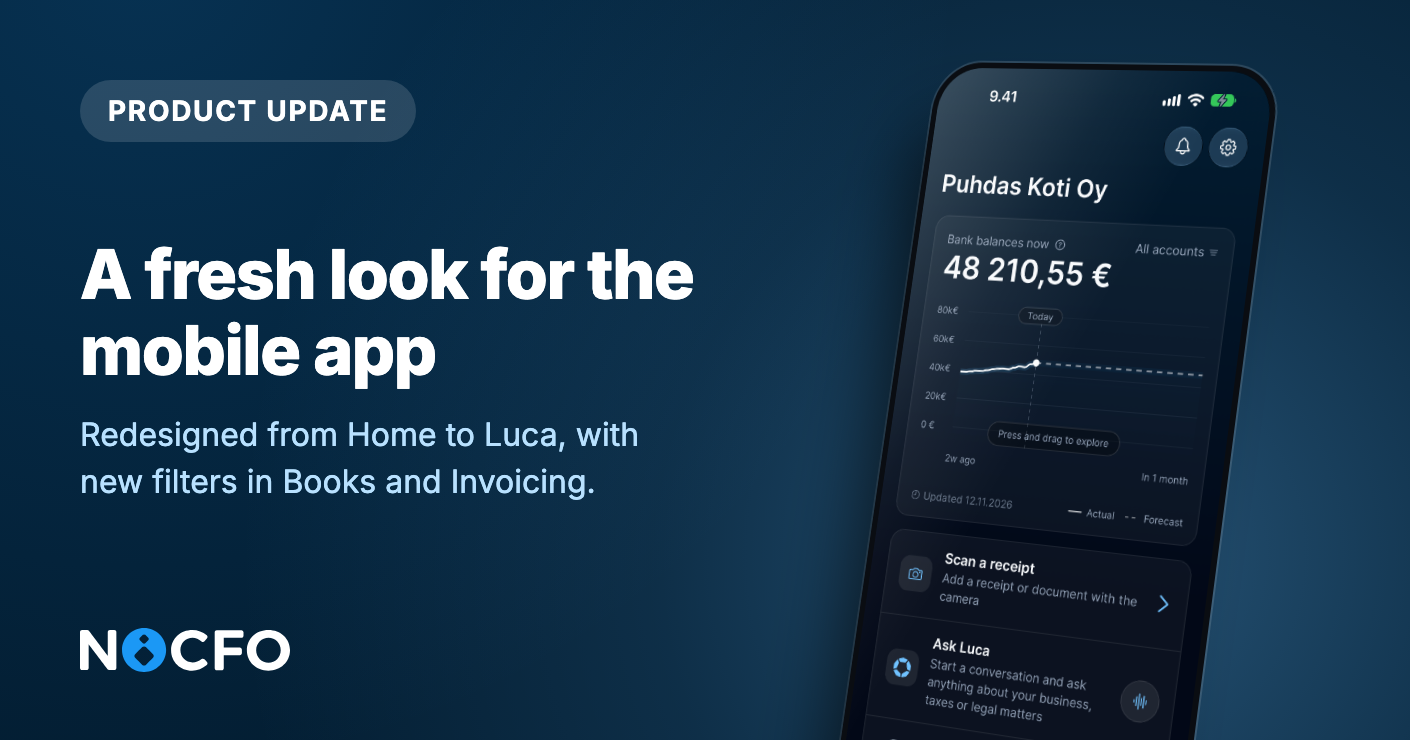
The NoCFO mobile app has been redesigned, and a few things moved. Your bookkeeping entries have a tab of their own, the camera is no longer in the middle of the tab bar, and Books and Invoices can be filtered right from the list. Luca also learned to take dictation, and you can now choose exactly which notifications you get. Update the app to get all of it.

Your bookkeeping entries get their own tab

Your bookkeeping entries used to be a list on Home, below everything else. They now have a tab called Books, with the entries waiting for your approval at the top, so the first thing you see is the work that needs doing.

A row of filters sits above the list. Closing the month and need every entry that is still missing an attachment? Tap the filter button and choose No attachments. The same sheet narrows the list to drafts, marked entries, bank mismatches, mentions, income, expenses, or one account or contact. Active filters stay visible as chips next to All, so when the list looks short you can see why, and one tap on a chip brings the entries back.
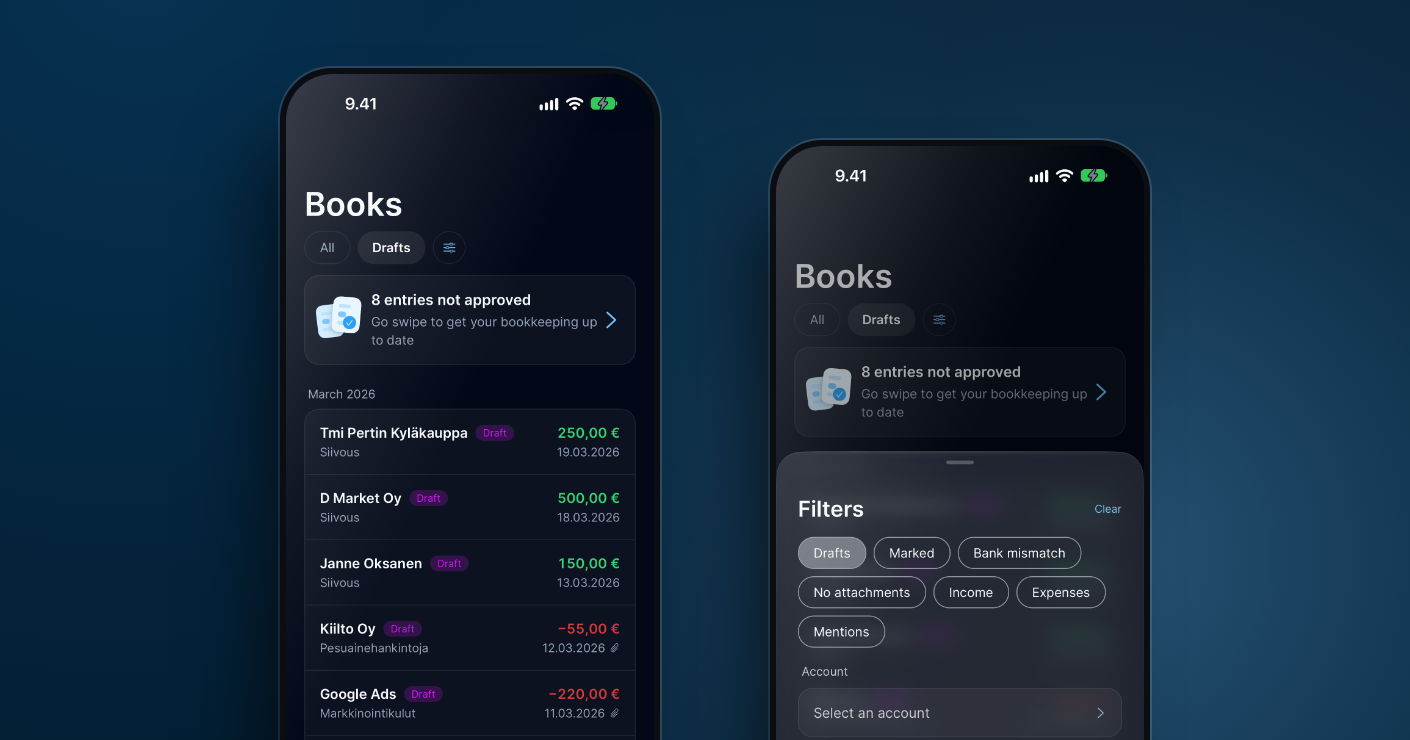
Books with the Drafts filter on, and the filter sheet

Invoices: sales or purchase in one tap

Invoices has the same row. Tap Sales to see only what you have sent to customers, or Purchase when you are going through bills to pay. All brings everything back.

Scanning has moved

The large camera button in the middle of the tab bar is gone, and it is the one change you might trip over. Scanning a receipt is now the first shortcut on Home, and Files has a scan button next to +. The camera opens full screen from both.
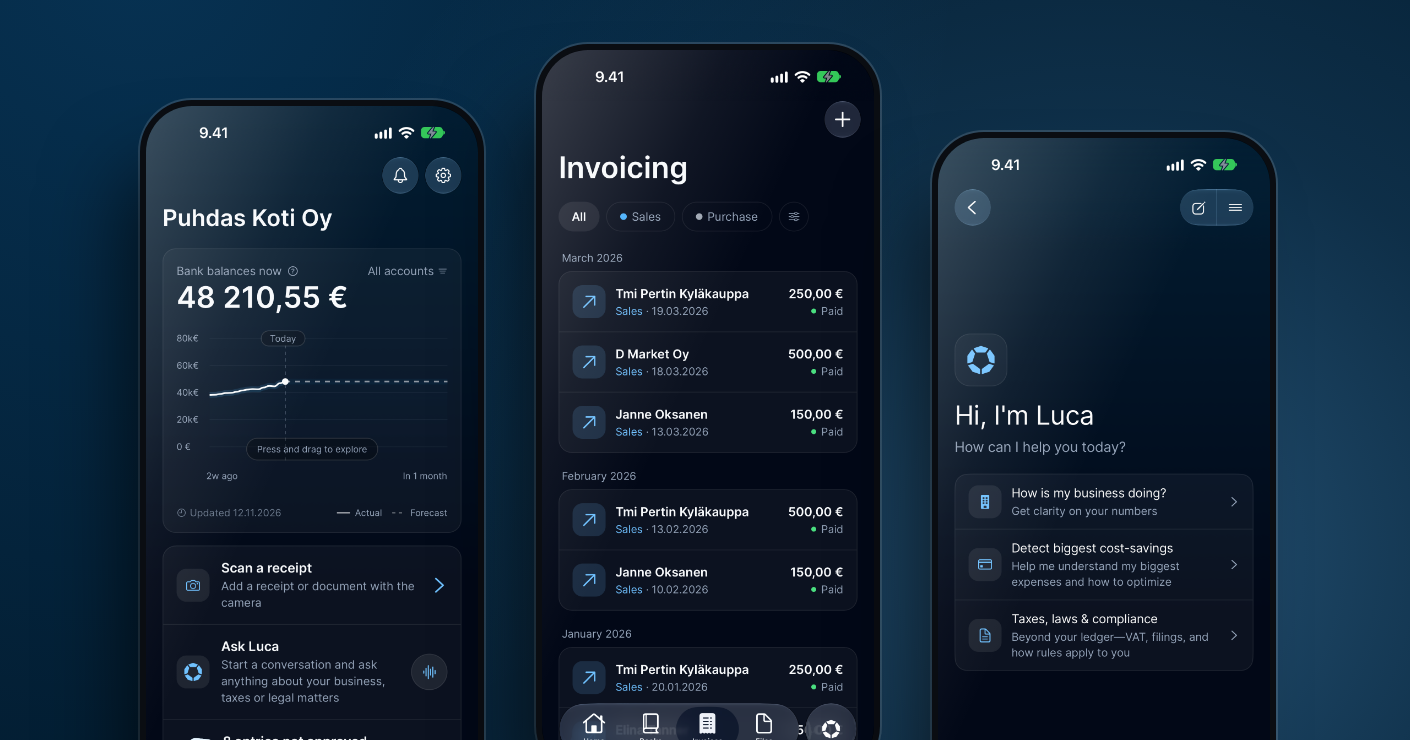
Home with the bank balance, Invoices and the Luca chat in the new design

The new design reaches every other screen too, so the app looks the same wherever you go.

Speak to Luca instead of typing

Typing a long question on a phone is slow. Luca's message box now has a microphone button: tap it, say what you want to know, and tap again. Your words appear as text, so you can fix a word before sending. If you trust the result, hold the button while you speak and let go to send right away. To discard a recording, slide your finger to the left before you let go.

Decide what reaches you

Some notifications deserve a buzz in your pocket and others are better as an email you read later, so every kind now has its own push and email switch. You find them in Settings, under Notifications. The kinds are invoicing (incoming e-invoices, purchase invoices due today, sales invoices a week overdue), VAT reminders, bank connection warnings, files and purchase invoices that arrive by email, mentions, and product and billing messages. You could keep VAT reminders on push so you never miss a deadline, move invoice notifications to email and switch off mentions altogether.

Summaries of accounting suggestions waiting for review have their own setting: daily, weekly or monthly. Your choices apply only to you, in the company you have open, and every notification still lands in your notification list. If push is switched off in your phone's system settings, the screen says so and links to them.

Smaller things

When a Luca answer fails, you can now retry it instead of typing the question again. A bank mismatch warning appears on a document when the amount booked on a bank account differs from the bank transaction, with the difference shown, and you can ignore it once you have checked. If your company uses accrual accounting, the rule form on mobile supports that now. The file viewer also tells you whether a file has been scanned for malware. Plus bug fixes and small improvements.
→ Download on the App Store

→ Get it on Google Play

Improved

Luca now answers in Slack

Luca now answers in Slack. Mention @Luca in a channel or send Luca a direct message to get answers about your accounting: sales, expenses, cash flow, invoices and VAT.

Questions usually come up in the middle of a conversation. Luca replies in the same thread, so you can keep working in Slack.

Ask where the work happens

In a channel, just mention Luca. You can also send Luca a direct message. Attach a receipt to your message and Luca will read it.

In a shared channel, others can see the reply. Luca only answers about companies you have access to in NoCFO, so nobody gets information they are not entitled to. You decide what gets shared in the channel.

If you manage several companies, Luca asks which one you mean. If a channel is meant for one company’s matters, tell Luca once. Luca remembers and stays with that company for the rest of the conversation.

Review changes before they are booked

Luca can also prepare an invoice or suggest a correction to your books. You see the proposal before anything changes, and only you can see it. Approve or reject it. Without your approval, your books stay as they are.

Your own page and channel notifications

Luca has a page in Slack that only you can see. Connect your NoCFO account to it to see how your company is doing and what needs attention, such as overdue invoices or an approaching deadline.

You can also choose a channel for notifications. Notifications from several companies can go to the same channel. When you reply to a notification, Luca knows which company it concerns.

Try asking how last month went, which customers have unpaid invoices, or which payments are missing a receipt.

Using Luca in Slack is included in your NoCFO subscription.

Add Luca to Slack →

New

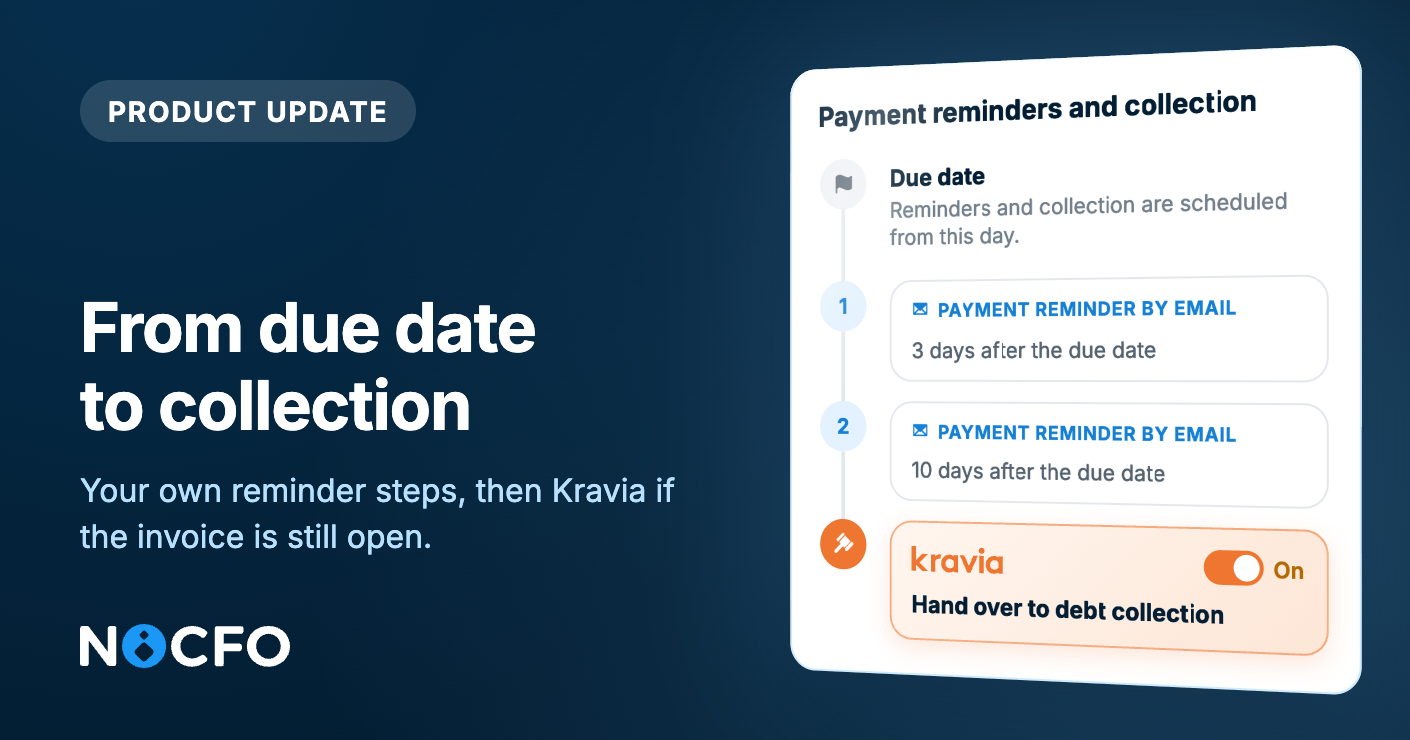
From due date to collection

Your own reminders first. If the invoice stays open, Kravia can collect it.

You can add your own payment reminders to an unpaid invoice. NoCFO sends them after the due date, from your own invoicing address. If you need collection, Kravia handles it.

Due date, reminders, collection

You can set one to five reminders before voluntary collection with Kravia. Each reminder goes out as many days after the due date as you choose. A reminder is free, and it is sent by email. You can edit the message. NoCFO adds the invoice number, amount, and due date, and always attaches the invoice PDF. The message goes out in the contact's invoicing language. You can preview the email before it is sent.

When you turn reminders on, NoCFO suggests the timing and the text of the first one. You can change both.

Kravia after the reminders

Kravia collects the payment for you. Collection aimed at voluntary payment costs you nothing, and the fees are charged to the debtor.

Kravia starts collection with its own statutory payment reminder. Schedule collection at least one day after your last reminder. Otherwise the customer gets a reminder from both you and Kravia.

Reminders and collection need a bank or Holvi connection, so NoCFO can see when the invoice is paid. New invoices follow this schedule. Existing invoices keep the setting they had when they were created.

Turn on payment reminders →

New: Tell your billers your new address

E-invoicing creates an address for your company, but your suppliers will not see it on their own. In E-invoice settings, from Tell your billers your new address, you can

  • download a one-page PDF in Finnish, Swedish, or English

  • copy the details into an email or a supplier portal

  • send the PDF to one or more billers and add your own message.

Replies come to your company's invoicing address.

New: Deliver invoices yourself

You can mark a sales invoice as sent with Delivered by you. NoCFO records the sending, and you deliver the PDF. The contact does not need an email address or a postal address. You can hand the invoice over in person, post it yourself, or send it from your own email.

New: Invite a friend

Invite a friend is now available to everyone. Share your link. When your friend subscribes to a paid Plus or Pro plan, you both get one month free. You can apply the credit to a business where you are an admin. The discount shows on the next invoice.

Plus several other small improvements and fixes.

NewImprovedFixed

Earlier updates