Changelog

Follow new updates and improvements to NoCFO.

From due date to collection
Your own reminders first. If the invoice stays open, Kravia can collect it.

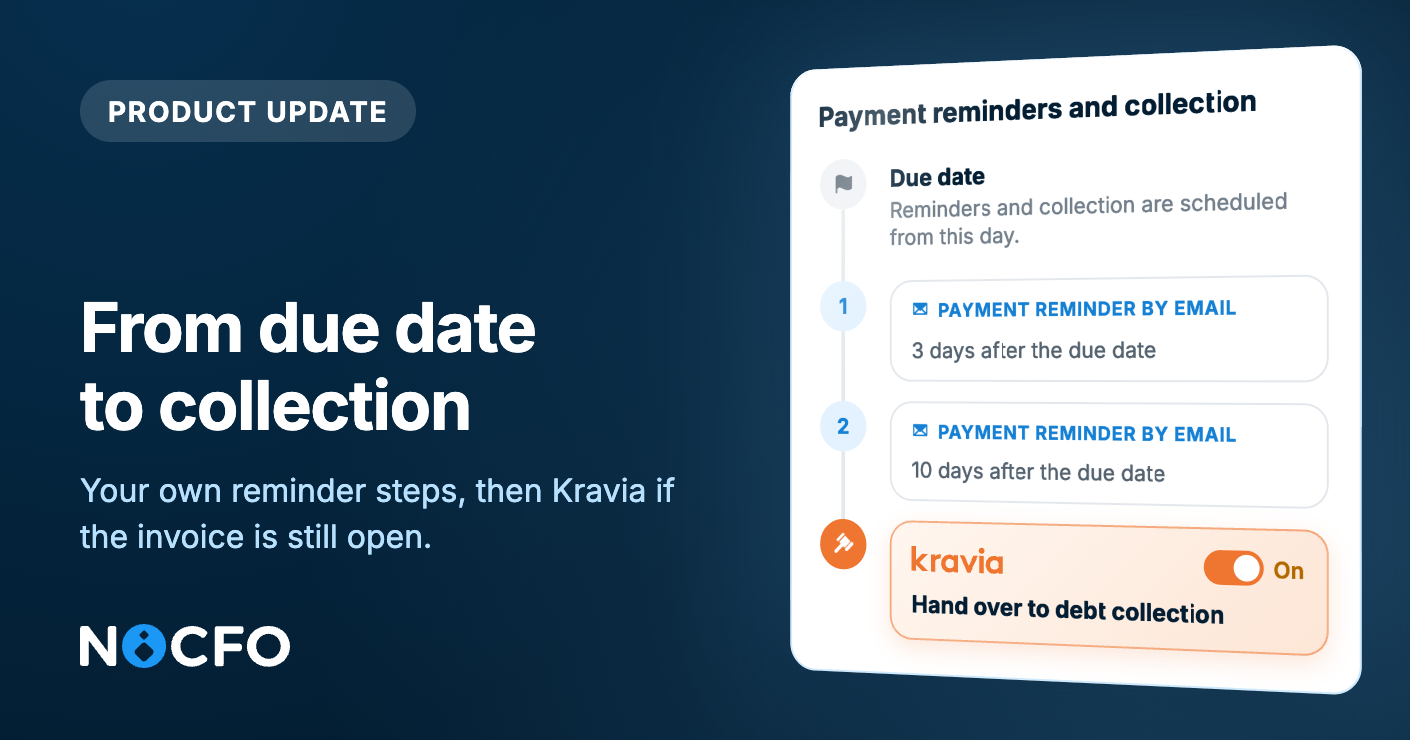
You can add your own payment reminders to an unpaid invoice. NoCFO sends them after the due date, from your own invoicing address. If you need collection, Kravia handles it.

Due date, reminders, collection

You can set one to five reminders before voluntary collection with Kravia. Each reminder goes out as many days after the due date as you choose. A reminder is free, and it is sent by email. You can edit the message. NoCFO adds the invoice number, amount, and due date, and always attaches the invoice PDF. The message goes out in the contact's invoicing language. You can preview the email before it is sent.

When you turn reminders on, NoCFO suggests the timing and the text of the first one. You can change both.

Kravia after the reminders

Kravia collects the payment for you. Collection aimed at voluntary payment costs you nothing, and the fees are charged to the debtor.

Kravia starts collection with its own statutory payment reminder. Schedule collection at least one day after your last reminder. Otherwise the customer gets a reminder from both you and Kravia.

Reminders and collection need a bank or Holvi connection, so NoCFO can see when the invoice is paid. New invoices follow this schedule. Existing invoices keep the setting they had when they were created.

Turn on payment reminders →

New: Tell your billers your new address

E-invoicing creates an address for your company, but your suppliers will not see it on their own. In E-invoice settings, from Tell your billers your new address, you can

  • download a one-page PDF in Finnish, Swedish, or English

  • copy the details into an email or a supplier portal

  • send the PDF to one or more billers and add your own message.

Replies come to your company's invoicing address.

New: Deliver invoices yourself

You can mark a sales invoice as sent with Delivered by you. NoCFO records the sending, and you deliver the PDF. The contact does not need an email address or a postal address. You can hand the invoice over in person, post it yourself, or send it from your own email.

New: Invite a friend

Invite a friend is now available to everyone. Share your link. When your friend subscribes to a paid Plus or Pro plan, you both get one month free. You can apply the credit to a business where you are an admin. The discount shows on the next invoice.

Plus several other small improvements and fixes.
NewImprovedFixed

One week, four upgrades

Safer EU sales, smoother setup, payments and invites.

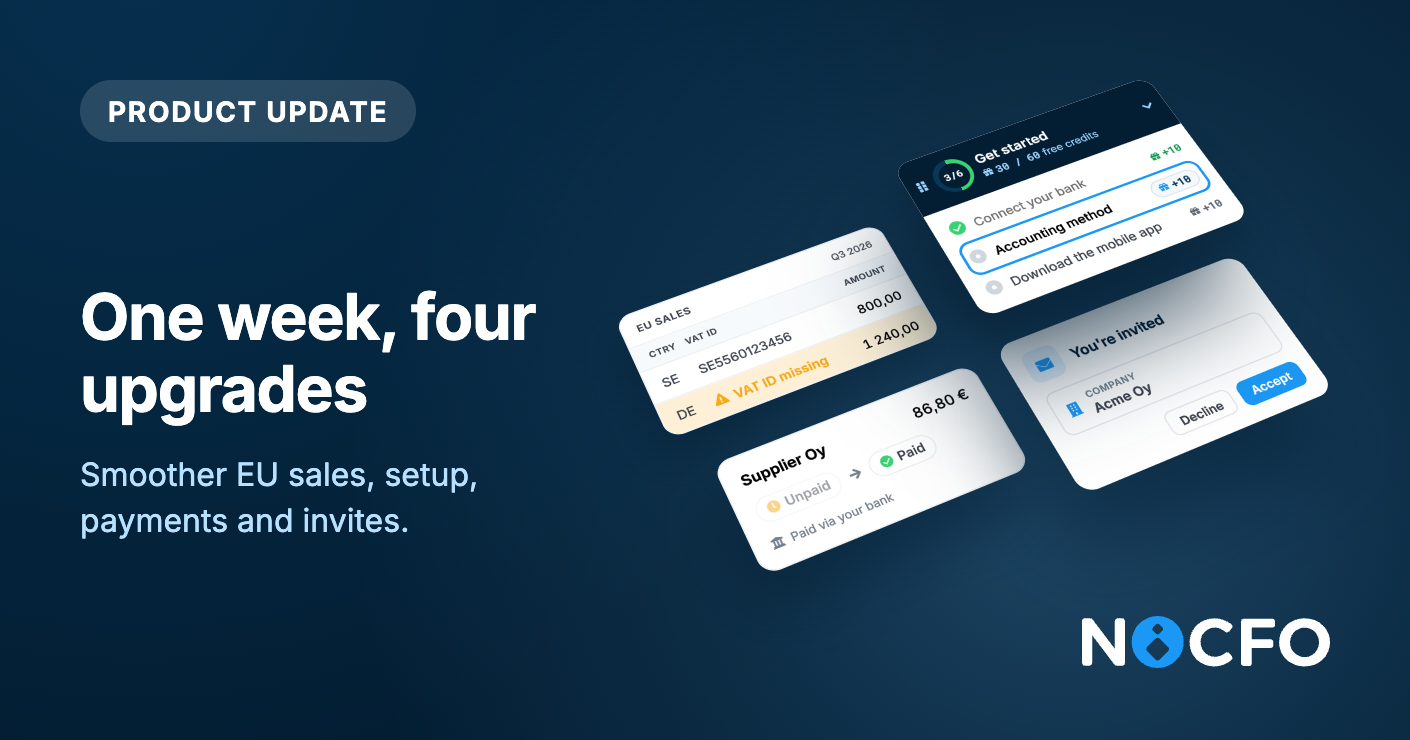
Four everyday things work better now: EU sales that warn you about missing VAT details, a Get started that stays with you, purchase invoice payments you can rely on, and invitations that lead straight to sign-up.

EU sales now warn you about missing VAT details

When you sell goods or services to a business in another EU country, your recapitulative statement needs the buyer and their VAT ID. NoCFO keeps an eye on both and warns you as soon as an EU sale is missing the buyer or the buyer's VAT ID:

  • On the form, the buyer field is highlighted, and a link takes you to the contact where you can add the VAT ID.

  • When you accept the posting, NoCFO asks you to confirm. You can still save, so your bookkeeping never waits.

  • In the list and on the event itself, a warning shows which sales need attention.

The EU sales report lists every EU sale, including those without a buyer, and marks what is missing on each row. It tells you how many rows still need attention, because the statement can't be filed until every row has a buyer and a VAT ID.

When a period has EU sales, the VAT report reminds you that a separate recapitulative statement is required. The VAT period page has a step where you can mark the statement as filed, and the deadline shows on your dashboard. NoCFO does not submit the statement for you: you file it with the tax authority yourself.

Open Reports →

A Get started that stays with you

Setup no longer lives on its own page. Get started now sits on screen while you work. You can drag it anywhere, collapse it, and pick up the next step when you have a moment.

The steps cover what makes NoCFO useful from day one:

  • Connect your bank

  • Tell us where you heard about NoCFO

  • Choose your accounting method: accrual or cash, with a clear example of when a sale is recorded under each

  • Add files and set up e-invoicing

  • Download the mobile app

  • Get to know Luca

Every step you complete earns free Luca credits. When everything is done, you see how many credits you collected.

Purchase invoice payments you can rely on

We've made several fixes behind the scenes to make bank payments more dependable. Paying a purchase invoice from NoCFO now goes through more reliably than before, and your invoice shows as paid once the bank has processed the payment.

Invitations that land on their own page

An invitation link now opens a dedicated page. It shows who invited you and which company you are joining, then guides you to the right next step:

  • New to NoCFO? Create an account with the invited email address.

  • Already have an account? Sign in and accept.

  • Not for you? Decline the invitation from the same page.

No more landing on a login screen wondering what to do. If you invite people to your business, they now find their way in without asking you.

Also shipped this week

Document filters include suggestions. Documents with a pending accounting suggestion now show up when you filter.

Contact details in automation rules. When a suggestion creates a contact, its details carry into the automation rule you are offered.

Zero-balance rows in reports. Rows with a zero balance now display correctly.

Plus many more bug fixes and small improvements.

NewImprovedFixed

Meet the new dashboard

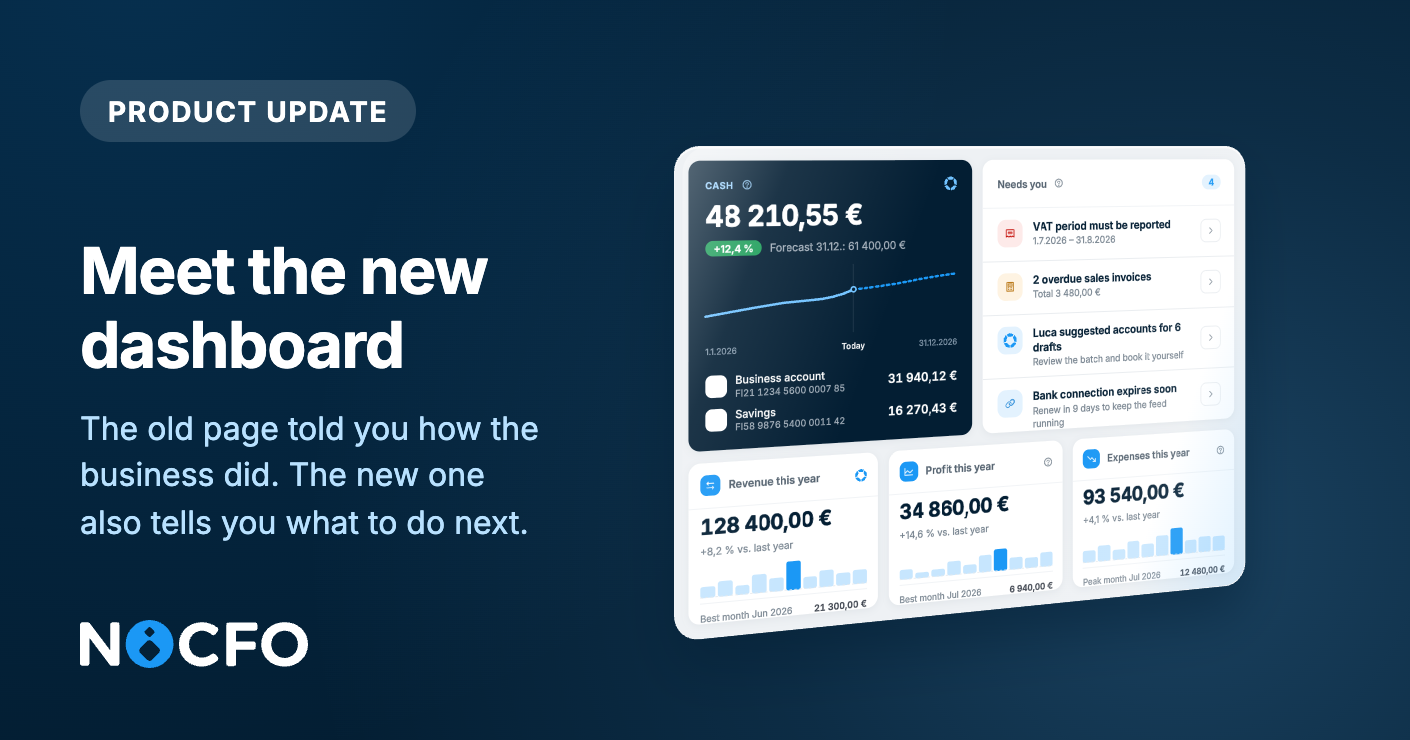
Open a business and you see cash, deadlines, and the work waiting on you. The old card grid is gone. In its place is a page that takes you straight to what needs doing.

What you see when you open a business

Needs you. Reports due, overdue invoices, documents still to book, and bank connections about to expire. Each row opens the right place.

Deadlines. The next VAT return and financial statement, counted from today.

Bank accounts balance now. The balance of your connected bank accounts, plus a forecast.

Revenue, profit, and expenses for the current accounting period. Change the range in the side menu and the figures follow.

Quick actions. Send an invoice, add a transaction, pay salary, or open a report without hunting for the button.

Further down: sales and purchase invoices by payment status, equity and liabilities, and this year’s VAT periods.

Ask Luca from the cards

The Luca mark on a card opens suggested questions, for example “Will I stay cash positive this month?” or “What is my biggest cost?”. Pick one and Luca opens. Nothing is sent on your behalf.

If Luca has account suggestions on drafts, the dashboard says so. You can review the batch in one go.

Open your dashboard →

NewImproved

Earlier updates